
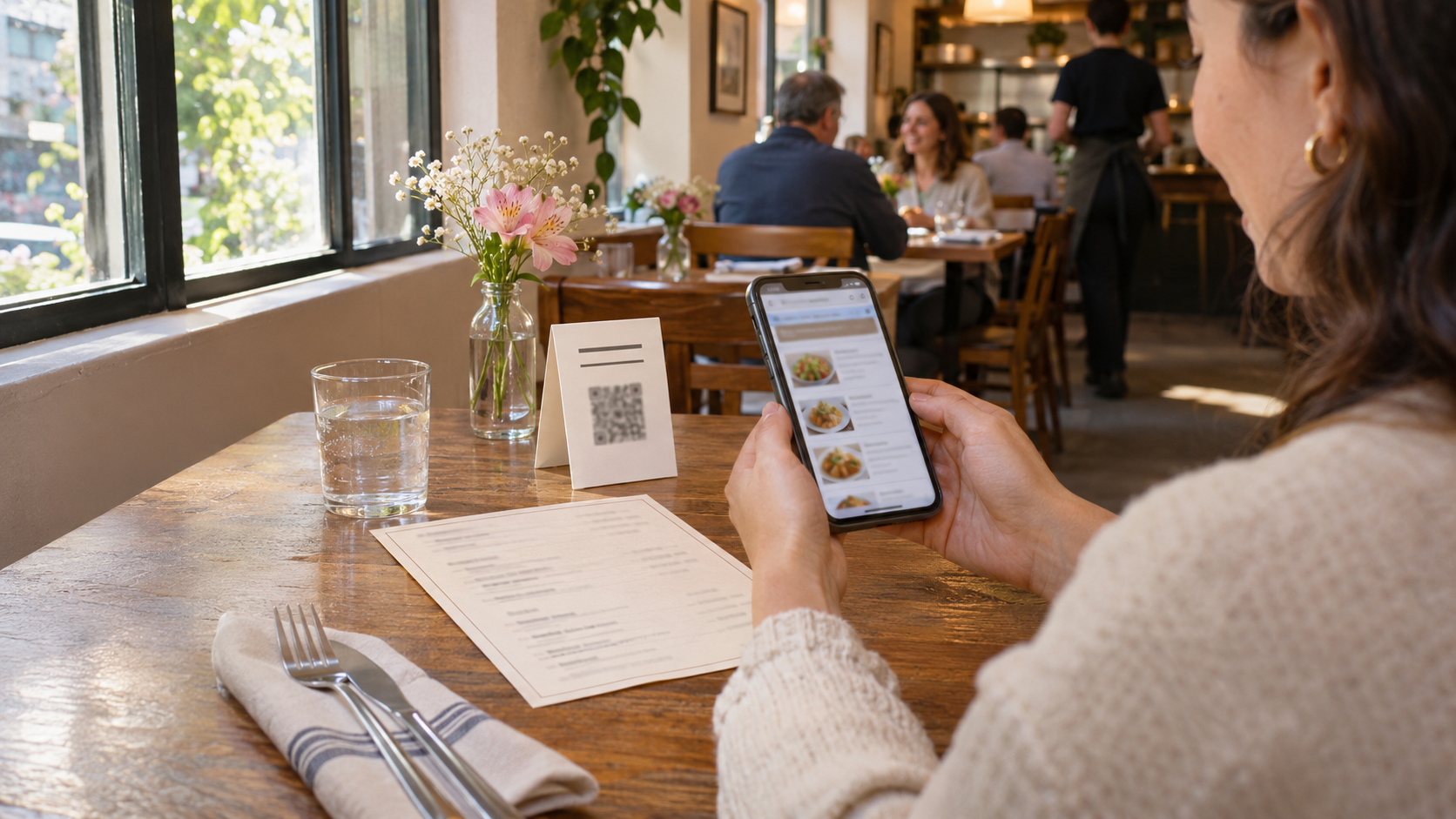
A restaurant menu QR code can simply open a menu page or PDF that is already online. Put the menu at a public, phone-friendly URL, create a QR code that contains that URL, and scan the printed code to confirm it opens the right menu. The QR code does not host the menu; the page or file must remain available at that address.
Put the menu online first
Choose a page on your restaurant’s website or a PDF hosted at a stable public URL. Open the link on a phone that is not signed in to your restaurant account. Check that a guest can read it without installing an app or requesting access. If you use a PDF, make sure it opens at a comfortable zoom and does not require a download flow that blocks the menu.
Keep the menu page current. If prices, hours, or items change, update the page or PDF at the same address when your hosting setup allows it. A QR code that points to a missing or outdated destination will still send guests to that destination.
Create a QR code from the menu link
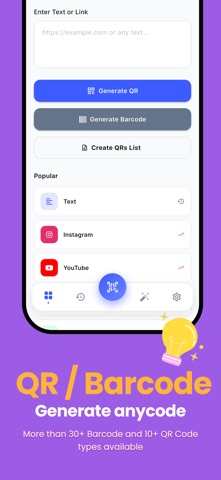
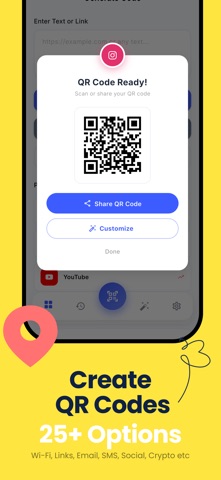
QR Pulse’s current iOS App Store listing describes QR creation for website links, and its listing screenshots show an “Enter Text or Link” field, a “Generate QR” control, and a QR result with a share action. The screenshots are publisher-provided iPhone app images, not a live capture of a menu-specific result. The steps below follow only the controls visible in that listing:
- Copy the public URL of the menu page or PDF.
- In QR Pulse, enter that URL in the QR creation screen’s “Enter Text or Link” field.
- Select “Generate QR.”
- Review the generated result, then use the visible share option to place the image into your table tent or other print layout.
- Print one sample and scan it with a phone camera before producing more copies.
The listing does not establish that a previously printed code can be retargeted, or that QR Pulse hosts menus, replaces a destination URL, accepts orders or payments, or reports menu scans. Do not rely on any of those capabilities unless they are confirmed for the product version you use. If the destination ever changes, scan the printed code and replace it if it no longer opens the intended menu.
Test the guest experience
Test the final print from the distance and angle a guest will use. Check that the code is large enough to scan from the table, has clear contrast and surrounding space, and is not distorted by a curved surface or glossy reflection. Scan it on more than one phone if possible. Confirm the destination is the correct current menu, not an editing preview or a sign-in page.
Offer a printed menu or a staff-assisted option too. A phone-only path may not work for every guest, device, connectivity situation, or accessibility need. A QR code should make the menu easier to reach, not become the only way to see it.
What this QR code does and does not do
The QR code is a scannable shortcut to the URL encoded in it. Menu availability and updates depend on the website or file host. A separate restaurant platform may host a menu, change destinations, accept orders or payments, or provide scan reporting; those are different services and are not established by QR Pulse’s QR-generation listing. For example, Square’s restaurant QR-ordering product describes an ordering experience beyond opening a menu link.
If you control an online landing page and already use a configured analytics service, campaign parameters can help identify recorded visits to that page. Analytics only reports what the configured measurement setup can observe; it cannot prove that someone read the menu, ordered, or visited because they scanned a particular printed code. Do not add tracking parameters to a restaurant’s URL without the site owner’s agreement.
Frequently asked questions
Does a restaurant menu QR code contain the whole menu?
It can encode text, but a full menu is usually better kept on a web page or hosted document. The QR code then contains a link to that destination. The destination must stay publicly available.
Can I use a PDF menu?
Yes, if the PDF is hosted at a public URL that opens reliably on a phone. Test the exact link without an account login and check that text is readable on a small screen.
Can QR Pulse host or update my menu?
The current public listing supports QR creation for website links. It does not establish menu hosting, changing a printed code’s destination, online ordering/payment, or scan analytics.
How can I tell if the printed QR code works?
Scan the final print with a phone camera from normal guest distance. Confirm that it opens the intended current menu without an account prompt. Repeat after changing the destination or print layout.
Sources
- QR Pulse on the Apple App Store — publisher description and current iPhone listing screenshots; accessed 16 November 2026.
- QR Pulse on Google Play — publisher product description.
- Square restaurant QR-code ordering — example of an ordering product beyond a simple menu URL.
- Google Analytics URL builders — what campaign parameters can identify in a configured Analytics property.
- QR Codes for Small Business — broader business placement and testing context.
- Custom QR Codes — design and scan-testing guidance.
- QR Pulse product page — product context and relevant store links.