
Quick answer
For an internal SKU, choose a barcode format your own inventory workflow can read, enter the SKU you already use, generate the barcode in QR Pulse, and test a printed sample with the scanner that will be used day to day. A generated image does not assign an official retail product identifier. If the label is for a product sold through retail channels, check the applicable identifier rules first; GS1 US says a consumer product needs a product record and an available GTIN before creating a UPC-A barcode.
QR Pulse lists barcode creation for EAN-13, UPC, Code 128 and other formats in its App Store description. The owner has confirmed that the app features described here were verified on an iOS device. Because the current screenshot shows only a generated Code 128 result, this guide stays at task level and does not name picker, input, export, or direct-print controls.
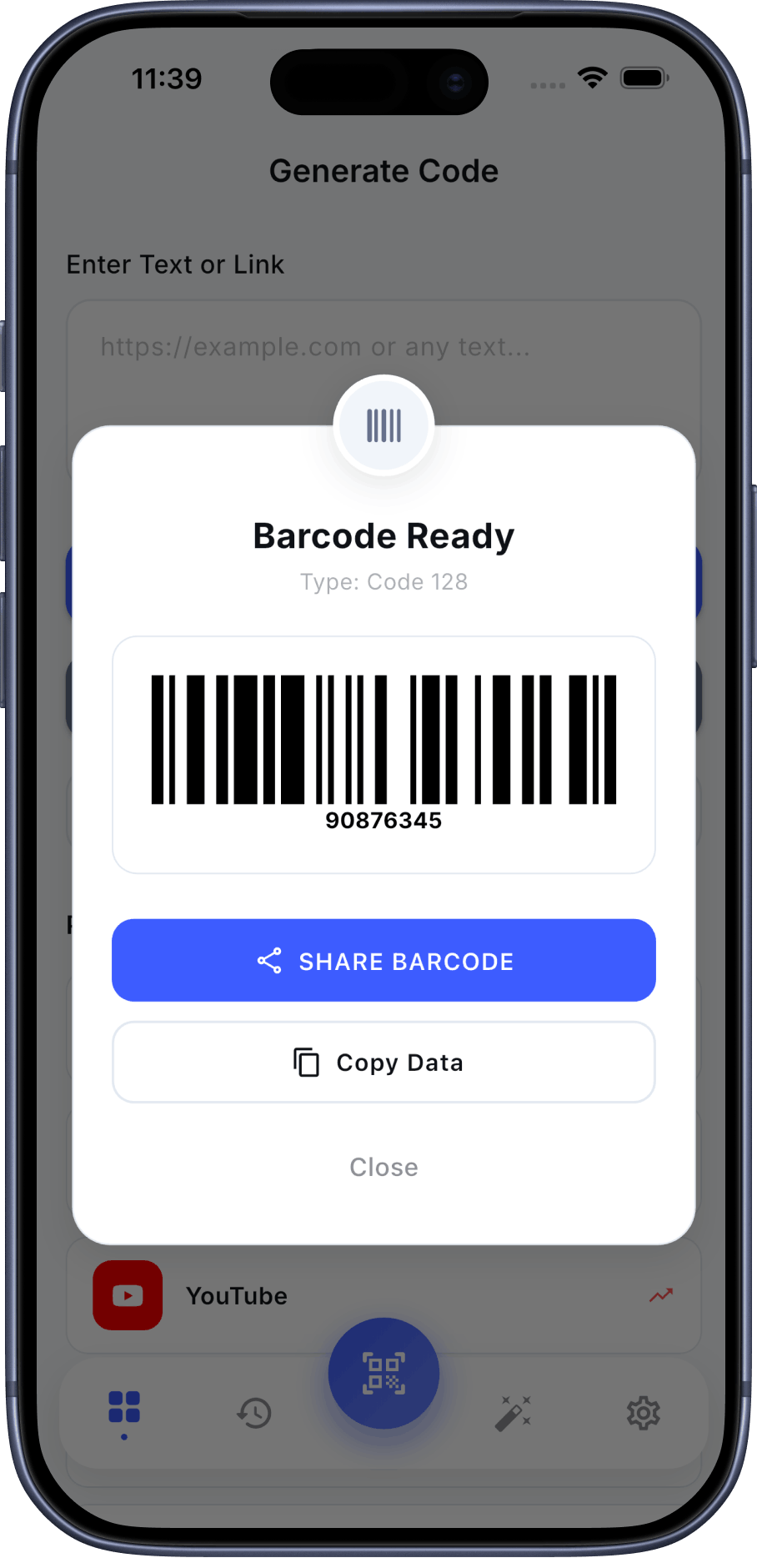
Review note: The genuine screenshot below shows QR Pulse’s generated Code 128 result and its visible value/share/copy controls. It does not show the format picker or text-entry field, so this guide describes a cautious workflow without naming exact controls. No product UI has been recreated or inferred.
First decide what the label is for
An internal SKU is an identifier your team uses to distinguish an item in its own records. Agree on the identifier and the software or scanner that will read it before making labels. If you are introducing a barcode into an existing inventory process, confirm the chosen format is supported by that process.
A barcode image is not the same thing as assigning an industry-standard product identifier. For retail UPC use, follow GS1 guidance for your market and product. This guide covers internal labels only; it does not determine whether an identifier is accepted by a retailer, marketplace, distributor, or regulator.
Make the internal barcode in QR Pulse
- Decide on the SKU and confirm that it is unique in your own inventory records.
- Open QR Pulse and choose its barcode creation feature.
- Select a format supported by the system that will scan the label. QR Pulse lists EAN-13, UPC, Code 128 and other barcode options; the available choices may depend on the app version.
- Enter the SKU or other internal value exactly as it appears in your records. Check for transposed characters and leading zeroes.
- Generate the barcode, then review the displayed value against the source SKU.
- Share or copy the generated result if those controls appear in your app version. The current screenshot shows Share and Copy controls; it does not establish direct printing.
- Print one sample at the intended size and scan it with the device or workflow that will be used in practice. Confirm both that it reads and that the returned value matches the record.
These steps describe the task-level workflow, not an exact sequence of QR Pulse button labels. The screenshot below shows the generated result, not the picker or text-entry field.
Test before labeling a batch
A successful scan on one phone does not prove every scanner or inventory system will accept the label. Test with the actual device and software used by the team. Check a few real print samples for readability, correct value, and placement. If the label is used for a saleable retail product, confirm identifier and packaging requirements with the retailer or relevant standards body before printing in quantity.
Internal SKU vs retail UPC
Use an internal code when the identifier only needs to work inside your own process and the chosen scanner accepts it. A UPC used for retail product identification has separate allocation and standards considerations. GS1 US explains that its UPC-A flow begins by creating a product and assigning an available GTIN. Do not invent a number and assume that turning it into bars makes it a valid retail UPC.
Frequently asked questions
Can I make a barcode for an internal SKU on iPhone?
QR Pulse lists barcode generation, including Code 128, EAN-13 and UPC formats. The owner confirms the feature was verified on iOS. Choose a format accepted by your inventory workflow and test the printed result before using it.
Does a barcode generator give my product an official UPC?
No. Generating a barcode graphic does not by itself assign a valid retail identifier. For UPC-A, follow the applicable GS1 process and retailer requirements.
Which barcode format should I choose for an internal SKU?
Choose based on the systems that must read it and the data those systems expect. Check your inventory software or scanner documentation rather than assuming every format is interchangeable.
Can I print labels directly from QR Pulse?
The current sources confirm barcode generation but do not establish a direct-print flow or output settings. The screenshot shows share and copy controls; it does not prove direct printing.
Sources
- QR Pulse on the App Store — listed barcode formats and app feature description.
- GS1 US: Create products and generate UPC-A barcodes — GS1 product and GTIN workflow.
- GS1 US: Create a barcode — barcode guidance.
- QR Pulse product page — current barcode-generation screenshot source; the screenshot evidence is limited to the displayed Code 128 result, value, and controls.
Related QR Pulse guides
- QR Codes for Small Business — broad small-business QR uses; this article focuses on 1D barcode labels for internal identifiers.
- Custom QR Codes — QR appearance and testing; distinct from creating a 1D barcode.