

Quick answer
QR Pulse describes a continuous batch mode for scanning multiple items, a duplicate check, and an organized, searchable history stored locally on the device. That supports a practical workflow of scanning a set of codes, then reviewing the saved results. It does not establish that every repeated code is retained, that data can be exported as a spreadsheet, or that a scan is automatically reconciled with an inventory system.
The app owner has confirmed that the iOS features discussed here were verified on a device. The listing does not document exact controls, displayed fields, duplicate behavior, or batch ending/review steps, so this article makes no control-by-control claim about them.
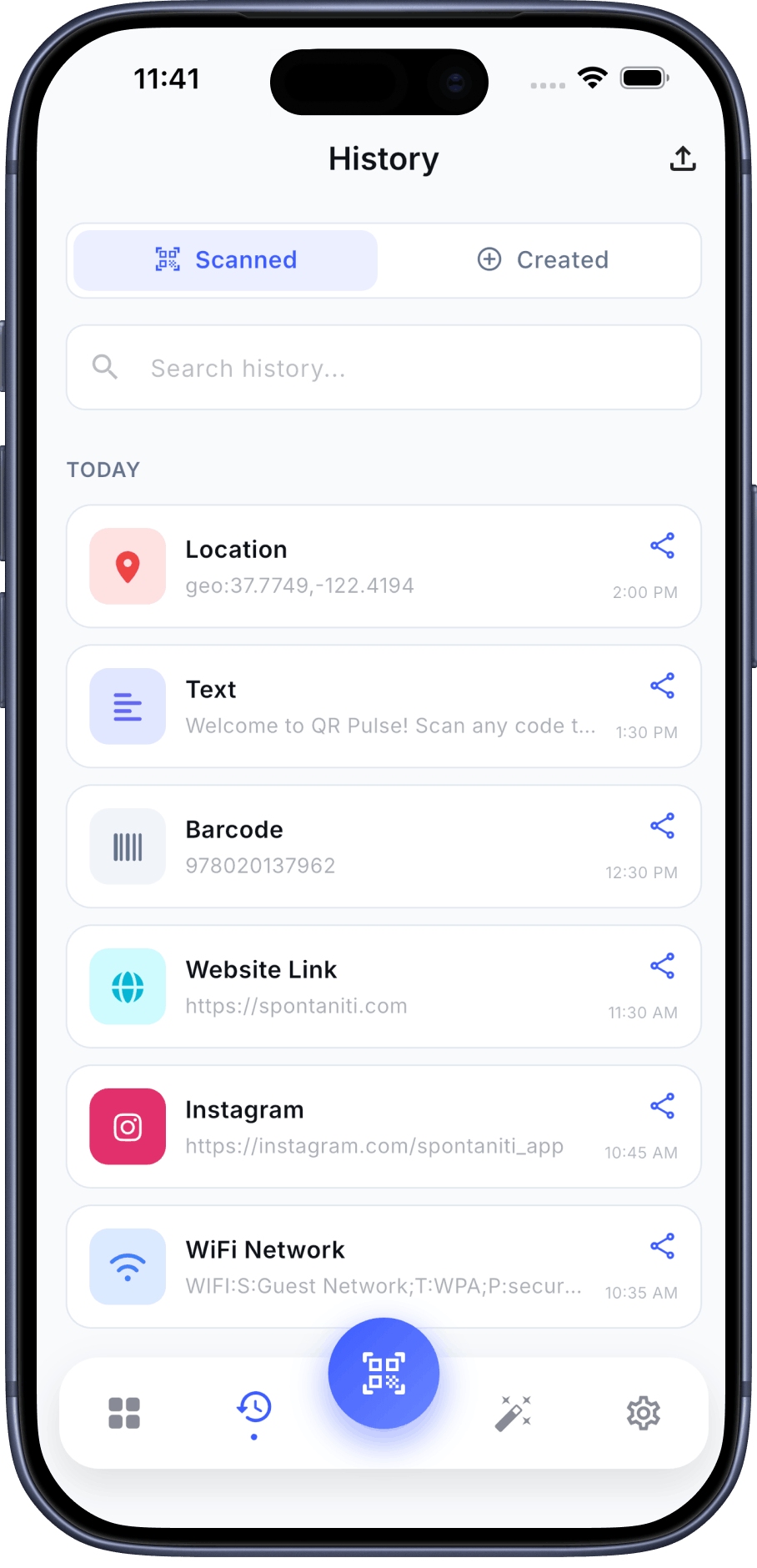
Review note: A genuine QR Pulse History screenshot is included below. It shows several saved scan entries, including a barcode, but does not show a batch-mode session. No product UI has been fabricated.
What batch mode is for
Batch mode is useful when the task is to capture several codes in one session instead of handling each scan as a separate visit to a scanner. QR Pulse's App Store description calls this “Continuous Batch Mode” and says it can scan multiple items. The listing also describes duplicate checks and a searchable history.
The listing does not document every field recorded for a scan or explain whether duplicates are discarded, flagged, or otherwise handled in all cases. Describe these as listing-level features rather than promise a particular audit log or export format.
A careful batch-scanning workflow
- Start a continuous batch scan in QR Pulse. This article does not prescribe a control label or tap sequence.
- Scan the codes in the set you intend to record. Keep the items and the expected count visible or noted separately.
- Review the batch or history screen after scanning. Compare the results with the expected items and count.
- Check how a repeated code appears in the current app version. Do not assume a duplicate check means every repeat is silently removed.
- If the results will be used for inventory or operational decisions, reconcile them with the system of record before acting.
This workflow describes the task at a high level. The History screenshot below shows the saved scan list; it does not establish that the entries came from a single batch session.
What the scan list shows
The existing QR Pulse scanner capture below shows a populated “Today’s Scans” list with Location, Text, and Barcode entries. It is genuine app UI from the November 6, 2026 SPWB-15 review assets and supports the visible scan-list/history context. It does not show the batch-mode control, nor does it establish that these entries came from one batch session.
What the App Store listing says is recorded
The listing says QR Pulse keeps scanning and history locally on the device, describes “Smart History” as organized, searchable, and available offline, and mentions duplicate checks. These are the publicly stated product claims. This article does not infer a cloud sync, CSV export, guaranteed record fields, or a specific duplicate rule.
Apple's built-in Camera or Code Scanner provides a quick way to open content from a QR code. For a repeated-code collection workflow, compare the built-in option with the app's stated batch and history features, and choose based on the task you need to complete.
Review the results before you rely on them
For a count-sensitive task, compare the number of expected items with the scan results. Inspect the actual values, especially where similar labels or repeated codes are possible. If the scan history is used as an operational record, follow your organization's retention and backup process; a local history should not be treated as a shared system of record without confirming how it is stored and transferred.
Frequently asked questions
What does QR Pulse batch mode do?
The App Store listing describes a continuous batch mode for scanning multiple items. It does not document the exact flow or result fields, so this article avoids control-by-control instructions.
Does QR Pulse batch mode save each scan?
The listing says QR Pulse has a locally stored scan history. It does not specify every field or guarantee how repeated values are represented. Review the current app behavior before relying on it for recordkeeping.
Does duplicate check mean a repeated item is deleted?
The listing mentions a duplicate check but does not explain whether repeats are ignored, flagged, or handled another way. This article avoids promising a specific behavior until the current app flow is documented.
Can I export a batch to CSV?
The sources available for this review do not verify CSV export. Do not rely on an export claim unless it is confirmed in the current app and documented with a screenshot.
Can I use the iPhone Camera instead?
Apple documents scanning a QR code with the Camera app or Code Scanner and tapping the resulting link. QR Pulse separately lists batch scanning and scan history. The right option depends on whether you only need to open a QR destination or collect and review multiple scans.
Sources
- QR Pulse on the App Store — listing description of continuous batch mode, duplicate checks, history, and local storage.
- QR Pulse on Google Play — current publisher description of continuous scans and previous results in history.
- Apple Support: Scan a QR code with your iPhone or iPad — built-in Camera and Code Scanner workflow.
- QR Pulse product page — current History screenshot source; the image shows saved scan entries but not a batch session.
Related QR Pulse guides
- QR Codes for Small Business — general QR code uses.
- QR Scanner Privacy — privacy considerations when scanning.